My Nokia Lumia 920 Trial – Getting to know each other

I currently have a white Nokia Lumia 920, which I have been given by Nokia to trial for two weeks (possibly a little bit longer as it’s Chrismtas!).

What are the stats?

  • Operating system: Windows Phone 8
  • Screen: 4.5’’ PureMotion HD+
  • Camera: 8.7 megapixels
  • Processor: Snapdragon™ S4 Dual-core 1.5GHz

So, firstly when I opened the box and went to put in my sim, the first issue I had is that I didn’t have a micro-sim! That’s one thing Nokia forgot to remind me of before they sent it. So after a quick visit to the Three Store, I popped in my simcard and got started.

Getting started brought with it the usual ‘connect your phone to this’ and ‘sign in with your Windows Live account’. I added Twitter, Facebook, Gmail and then forgot my username and password for my Live account. Fortunately you can set up an account nice and easily within the phone.

My first impressions were that it’s fast. Really fast! It doesn’t take long to whizz through the menus and there’s no lag on the keyboard or anything else. Then again I am comparing this to my HTC Wildfire S! The dual-core processor is most certainly working away and means that I’ve not been frustrated once with it being slow.

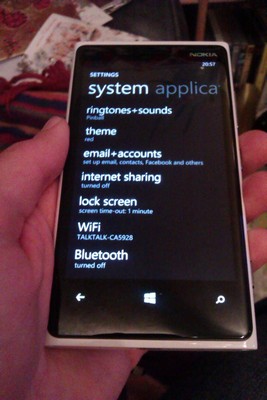
I don’t know about you but one of the first things I do with a new phone is have a look through the settings. There are lots of settings to play with! A lot more than I expected. There are two settings menus; system and applications. I feel that the system menu could’ve been split up further as there are so many options here.

On to the real meaty stuff; I love the Start screen. Live tiles are such a fantastic way of displaying new information. Android’s widgets feel too clunky, but Windows’ tiles have just the right amount of information and are animated in a fun way. I’ve found myself adding more tiles over the past 24 hours, and the way that you can size them means you can make the most important ones as large as you wish.

Earlier this week it was Amy’s Niece’s birthday and it was a good opportunity to test out the camera on the 920. In low level light, the camera did a great job at capturing the candles being blown out. And generally the  photos are fantastic. Taking a picture is made very simple by just tapping wherever you want to focus and it will take the photo moments after. I tend not to use the dedicated photo button on the right-hand side as it takes a while and doesn’t always autofocus. However tapping the screen did cause an issue when I was videoing, as it kept starting and stopping the video when I expected it to actually change the focus point (I picked this up from videoing on my iPod Touch running iOS 6).

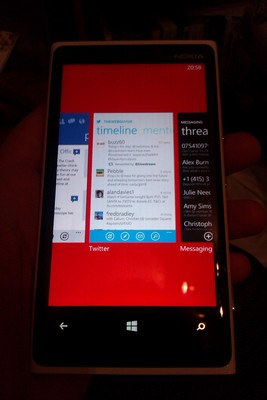
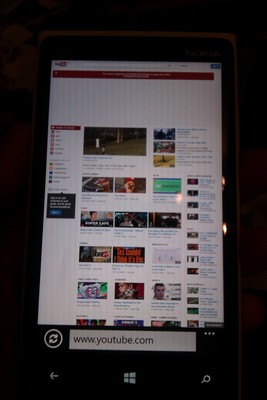
Windows Phone 8 boasts Internet Explorer 10, which works very well on the Nokia. Again, it’s fast and renders most pages very well. The only downside is that sometimes it doesn’t always direct you to the mobile version of a site, e.g. YouTube. For me, the most annoying thing about IE10 in WP8 is the way you exit the application. To do so, you have to keep pressing the back softkey until you exit the app. This takes you through the history of pages during that session. It is very annoying when I’ve been looking for a particular bit of information and have gone through several menus on a site, just to go back through it all. If I hold down the back button it shows me all the currently open applications, but this screen doesn’t allow you to click an ‘x’ to close the app. For me, this has to be the most annoying thing about WP8, the way that you can’t close apps without having to use the back key.

Another gripe is the lack of apps in the Windows Phone Store. Having come from using Android and the Apple App Store on my iPod, the lack of apps is a bit frustrating. There’s no Instagram for a start! Oh how I miss taking pictures of my Lego Star Wars Advent Calendar and posting them to the service.

Another confusing thing is that apps like Facebook and Foursquare might have two versions; an official version and then a ‘Nokia Corporation’ version. More often than not I went with the official app as it should have the latest features, however I found that the Twitter and Facebook apps lacked some of the features I’d got used to on Android and iOS; like choosing picture upload services in Twitter and what kind of notifications I can have from Facebook.

The biggest annoyance, which I discovered today, is that I can’t log out of the Skype app! I installed it and signed in, but then discovered as I was talking to my boss on desktop Skype, the Lumia would also get notifications. So I went through the settings and discovered I could set Skype to ‘invisible’. What I didn’t know is that it also set the status of my desktop conversations! I then promptly looked for the sign out option within the Lumia app. There wasn’t one! I searched high and low, which meant the only option was to remove it. I think that this is a major oversight of Windows on their Windows Phone application.

So I’ve managed to cover the major things that annoy me already. However there are so many things that I enjoy about the phone.

Have you got a Windows 8 Phone? Do you find any of these things annoying?

That’s it for now. I plan to do another post in a few days time, after I’ve had more time getting to know the Nokia Lumia 920, probably with some example photos and videos.

The photos below really don’t show how good the HD screen is, nor how nice the whole phone looks.
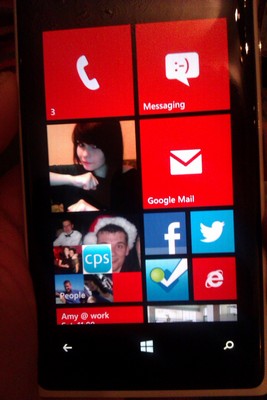
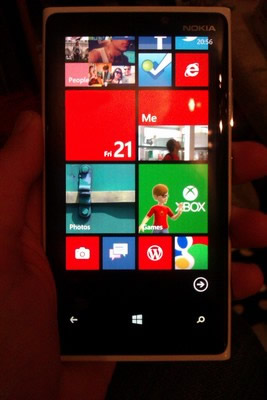
 

The Nokia Lumia 920 is provided by the Nokia Conversations ‘Trial A Nokia’ scheme. This isn’t a paid advertisement or anything either!
Yet another failed ‘365 Project’? I hope not!

January 1st is typically the day in the year where hundreds (if not thousands!) of ‘365 projects’ start up. Projects that have the number 365 in them and aim to post a new thing each and every day for a year. Sometimes it’s a photo, inspirational quote or maybe even a recipe!

Yesterday I was surfing the web (I haven’t used that phrase in years!) and came across some short URLs. Before I knew it I was doing my all to regular search for a cool short URL. I was trying to find words that ended with ‘es’. I came across ‘voic.es’, but of course that was taken. And somehow I came up with my own 365 project; 365Voices.

365Voices is pretty much what it says on the tin. Over 365 days I hope to post a new ‘voice’ each and every day. An audio recording of someone.

But what would this voice say? I decided it would be a 60 second audio piece where the person details their name, where they’re from and then they can say pretty much whatever they want! A funny story, an inspirational moment of their life, an observation they’ve made or simply just what they got up to/plan to do that day.

The plan is to start with people that I know (probably radio people first, as they love to talk!) and then spread it around. Anyone can submit their own voice and then I’ll schedule it to be posted in the future.

I’m collecting voices as of now with the first one being posted on Tuesday 1st January 2013.

Will I make it all the way through until 31st December 2013? I hope so! There are certainly plenty of opportunities to collect recordings at events like Cre8 Radio, Poacher 2013 and of course my workplace and university.

If you want to add your voice to the project, all the exact details are on the website at 365voic.es/add

Using WordPress to build a Radio Station Website

Recently several associates in the community radio industry have asked me for tips and useful plugins that I have used on site like One Media Group and Cre8 Radio. So I’ve pooled together some great tools that can help make a WordPress system work for a radio station; useful if you’re on a budget!

Contents:

Hosting

I won’t tell you where to go, but firstly you need to buy hosting and install WordPress on it if you want to have great flexibility. The sites on WordPress.com are only good for personal blogs and don’t have the functions required to use many of the tools below. You can find suggested hosts on the WordPress.org website at www.wordpress.org/hosting, but do look around elsewhere.

Personally, I use Tsohost. They are a great UK based company that provides 24/7 support (genuinely, I asked a question at 11:30pm and they replied in 20 minutes!) and even offers free whole website migration with some hosting packages. And with the coupon code “WordPress Rocks!” you can get 10% off any hosting package! Just enter it when placing your order.

Themes

Choosing your theme is essential, but don’t just look at the theme and take it as it is. Many sites take a template and then modify it to suit them. Whether that be a colour change or simply moving things about, beyond the widget function. If you have HTML, PHP & CSS knowledge then it will be very beneficial! If you can, stretch to a budget. Most good themes do cost a bit of money, usually between £20-£40, including exchange rates from American websites. Sites I would suggest for premium themes are WooThemes and ThemeForest. I don’t find the WordPress.org Free Theme Directory too useful, however the WP Theme category on Smashing Magazineis full of gems. Or you could always spin off your own WordPress theme which would give you exactly what you want, but may take a bit longer.

If you purchase a theme and it doesn’t support smart phones, why not try the plugin WPtouch. It is basically a theme which is only activated when users visit on a smart phone. There are lots of choices within the free version, however the paid version ($49/£31) does give you a lot more features like using custom menus and inline replies.

Bundles

There are two very useful bundles available for free, which contain some amazing features.

Jetpack for WordPress – jetpack.me

This bundle comes with WordPress and to activate it you must link it to a WordPress.com account. That account is free, easy to do and complete with a how to within the bundle. Notable features include WordPress.com Stats, Jetpack Comments, Sharing, Contact Form and Shortcode Embeds. All of which you should activate and configure upon installing Jetpack. I’ll talk about some of these later on.

WooDojo from WooThemes – woothemes.com/woodojo

This is already the second time I’ve mentioned WooThemes! Their WooDojo bundle brings features like Branded Login, Maintenance mode and Widget Previewing. Features here are ones where you’d usually have to install a separate plugin for each one, however they are bundled together nicely here along with simple settings. Definitely several here I use all the time!

Plugins

Here are some of the plugins I use to enhance the radio stations that I have on WordPress. I will refer to some of the features within Jetpack and WooDojo, but alongside others I’ll include links to their WordPress plugin pages.

URL Shorteners

WP.me Shortlinks – part of Jetpack

If you really want WP.me short URLs then you can use this as part of Jetpack. You can’t choose any other short domain or services and it doesn’t post automatically to Twitter.

WooDojo ShortLinks – part of WooDojo

Just like WP.me this will automatically generate your short URL, but you have the choice of TinyURL or bitly. If you hook in your Bitly username and API key you can use the bitly services and even your own short URL!

YOURLS – WordPress.org/extend

Having installed my own version of YOURLS I gave their WordPress plugin a go. I find this much easier to use then some of the others. It automatically posts to Twitter and can use a variety of short URL services, including the bitly custom domain setting.

Comment Systems

Facebook Comments

On the One Media Group website, I decided that as our audience were students, Facebook would be an ideal platform to use for our comments. I gave our management team moderator rights to the Facebook platform and then used the Facebook Comments for WordPressplugin to replace the standard comments system provided by WordPress. There are ways to implement it yourself, however using a plugin means that any API changes that Facebook makes, the maker of the plugin should keep them up to date for you. However do keep an eye plugins when using third-party services like Twitter & Facebook as they may break if the social networks change something very quickly.

Jetpack Comments – part of Jetpack – Jetpack.me/support

This recent addition to Jetpack seems to take care of wanting to allow users to login using Facebook or Twitter accounts when commenting. It builds right into the main commenting system of WordPress so uses all the regular settings you make in the Discussion panel.

Disqus – disqus.com

I’ve used this plugin before as I didn’t know about other alternatives. This requires you to make a Disqus account and moderate via their platform. I would now opt for other ways of sorting out comments however it might have something you want that others don’t.

Schedules

I always get asked how to do schedules in WordPress for a radio station.

I’ve worked with my good friend Christopher Smith to pull together a system that uses a text file and a series of PHP files to extract information. These files also are configured to generate an on air now, and on air next display. However this isn’t a fail safe system and it does require a lot of setup.

What other options are there?

How to Make a Radio Station Schedule Using WordPress – Wptuts+ tutorial

This tutorial shows how you can use custom post types to generate your own schedule. For my liking it is rather messy as you have to create lots of different posts with the information. However you can add descriptions easily, plus if you want to change it slightly you can as you go along.

Weekly Schedule – WordPress.org/extend

Whilst this plugin is primarily for TV schedules, it does double up nicely as a radio weekly schedule. You can have multiple schedules and display the show description either in the table itself or in a popup window. It also has categories so you can distinguish your speech-based content versus your daytime or specialist shows.

Google Calendar – Google.com/calendar

Using a Google Calendar is also a practical way to display your schedule, even if it does require putting in every single show manually. You could also share your calendar with other managers at the station so that it can be changed by others. It is possible then to embed the calendar in an iframe upon a normal WordPress page.

Timetable for WordPress (Paid – $20/~£12) – Codecanyon.net

This plugin was suggested by reader Satnam Rattu.

If you’re looking for something with a bit more flexibility, without the coding work, then this plugin could work for you. It boasts a selection of pre-defined skin colours and a neat side-scrolling feature.

Content Enhancements

WordPress Audio Player – wpaudioplayer.com

You’ve probably seen this player if you’ve been looking at websites with audio on. It is easy to install and comes with lots of customisation options, including a nice colour picker for the player. There’s also a button in the Media window when you add audio to a post, which makes embedding audio very easy.

However, if you are expecting a large amount of iOS or Android users to visit your site, it might be best to avoid this as it is purely Flash based.

WP-Polls – WordPress.org/extend

You can run polls for your users and also editors/admins using this plugin. Controlling the polls are relatively easy with expiry dates and multiple choice results.

Admin Tools

Advanced Access Manager – WordPress.org/extend

If you’re planning to have lots of users who will be logging in to provide content for your site, then you may want to watch what permissions they have more closely. Whilst the Editor/Author/Contributor model is okay, with Advanced Access Manager plugin you can create your own model for user access. You can create a new user type based on the original ones and then customise it as you wish.

WordPress Database Backup – WordPress.org/extend

A nice plugin that will help you keep a backup of your precious database. Either download, email or simply save the core database to your server. There’s even the option to add additional information from other plugins. You can schedule a backup as well, however I’ve found this not to be very useful with large databases.

Front End Upload – WordPress.org/extend

I’ve used this plugin to enable external show providers to send in their WAV/MP3 files. It’s faster than using WeTransfer and also it keeps all the data on your hosting. However, as the plugin page says, “Uploading files should be considered risky.” I would almost certainly always put this plugin on a private page or add a password to this plugin, which comes built in. It works in all browsers and is a nice tool to transfer content from different providers.

Ad-minister – WordPress.org/extend

This is useful if you want to have external advertisers, maybe your on air advertisers as well, or even ‘in house’ promotions on your site. It has a nice system for handling expiry dates and ad-rotations with weights. Plus you can see how many times an advert has been seen, along with it’s conversion rate.

Statistics

Every website owner likes to know who’s visiting what and when. If not, you should care! If you don’t then your boss and advertisers certainly should.

I usually run these two tools side by side as they differ in results and each have their own merits.

Google Analytics – google.com/analytics

There are an abundance of plugins that allow you to put your Google Analytics code in WordPress, but the easier (and arguably most effective) way is to simply post your code in your theme’s footer.php file, just before the </body> tag.

Google Analytics’ dashboard is nice and you can see a lot more details in here compared to the next tool.

Jetpack Site Stats – part of Jetpack – Jetpack.me/support

Another great part of Jetpack is the Stats component. It gives you all the important information like visits per day, top posts & pages and search engine keywords used today. It is great for Editors or Admins that want to quickly see what has been popular today or yesterday. I tend to use this more than Google Analytics.

Conclusion

Hopefully all of these plugins or tools will be useful to your radio station WordPress website, one way or another.

If you have any suggestions of plugins that have worked for your station, then please do leave a comment below or email me at oliver@oliverneedham.co.uk.

Notes

28/04/13 – I’m now looking to write a follow up to this post, especially as it was picked up by the CMA. If you have any more suggestions of plugins/resources or have specific questions, please drop a comment below and I’ll try and cover it in the next related post.

This article contains affiliate links. While I only ever write about products I think deserve recognition, I may earn a small commission if you click through and buy the product in question.